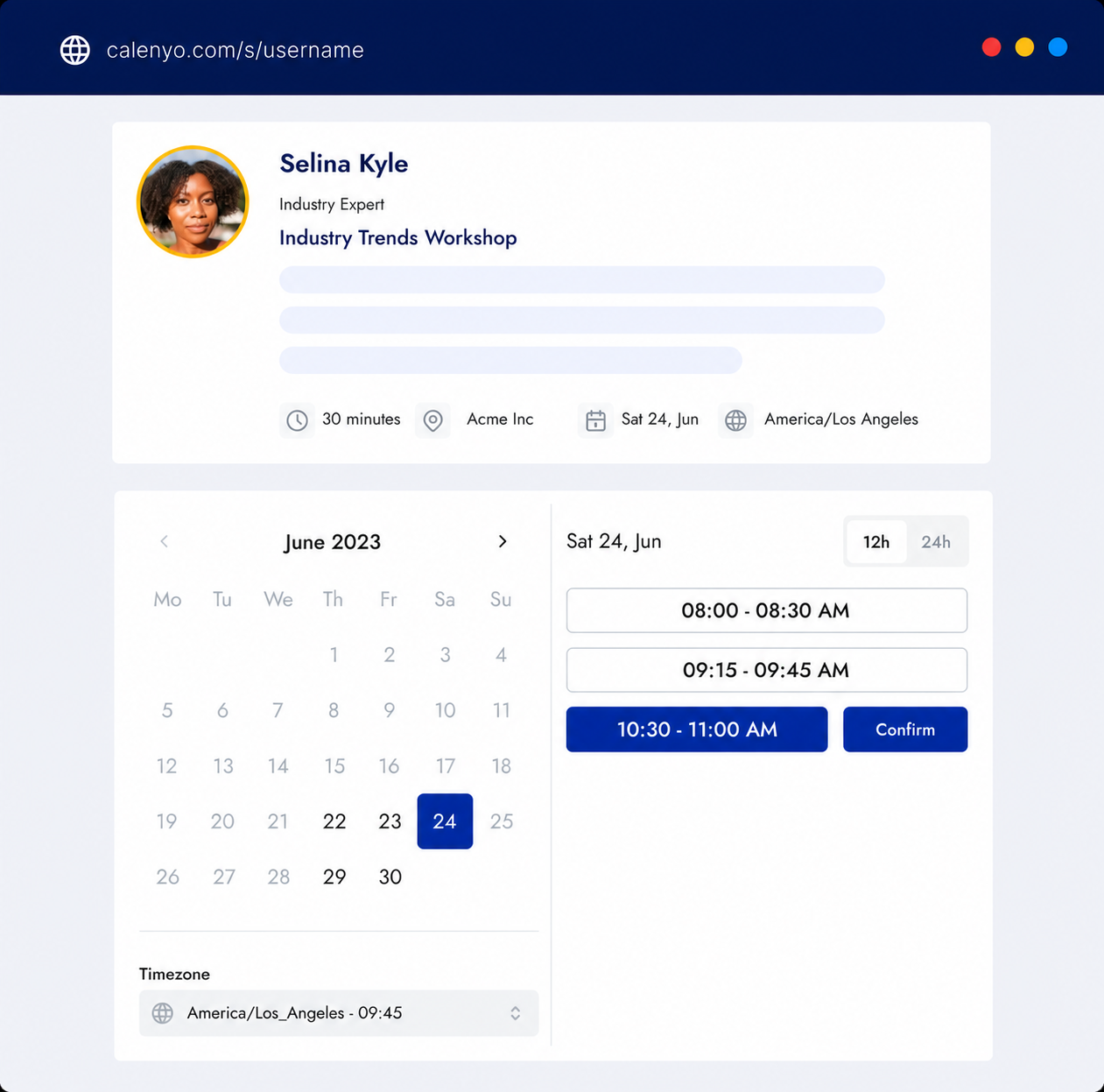
A useful booking page does four things: explains the appointment, shows only real availability, asks for the context you need, and confirms what happens next. If a client has to message you for clarification, the page is not finished yet.
1. Define one appointment
Start with a single reason someone would book. “30-minute project discovery call” is clearer than “Meeting.” A focused event helps the guest decide whether it is right for them and helps you prepare for the conversation.
Include:
- who the appointment is for;
- what you will discuss;
- how long it lasts;
- where it happens; and
- what the guest should have ready.
Create another event when the duration, audience, or outcome changes. One page trying to cover every kind of meeting usually creates more questions than it answers.
2. Publish availability you can actually keep
Your booking page should expose the hours you are comfortable protecting for appointments—not every open space in your calendar.
Group calls into a few reliable windows if uninterrupted work matters to you. Add a break between appointments when you need time for notes, travel, or a reset. A smaller set of dependable times is better than a wide schedule you regularly have to change.
3. Ask only questions that change your preparation
Every required field adds work for the guest. Keep name and email, then add only the questions that help you decide what to bring to the call.
For a client consultation, two prompts may be enough:
- “What would make this conversation useful?”
- “Is there a page or document I should review beforehand?”
Avoid asking for information you can collect naturally during the appointment. Sensitive personal, medical, or payment information also belongs in a purpose-built system, not a general booking form.
If you run discovery calls, these seven discovery-call questions are a practical starting point.
4. Make the confirmation self-contained
The confirmation should remove uncertainty. Check that it includes the date, time, timezone, duration, location or meeting link, and the event owner’s name.
Guests also need a clear way to change the appointment. In Calenyo, the confirmation email can include a secure management link for rescheduling or cancellation. That is better for both sides than asking a guest to reply and restart the scheduling conversation.
5. Test the page as a guest
Open the public link in a private browser window and complete a booking with an email address you can check. This catches the details that are easy to miss while editing:
- Is the purpose obvious before choosing a time?
- Does the timezone match what the guest expects?
- Are the form labels understandable without extra context?
- Does the confirmation contain the correct location?
- Can the guest reschedule or cancel without contacting you?
Repeat the test after changing availability, questions, reminders, or location details.
A simple publishing checklist
Before sharing the link, confirm that the page has:
- one specific appointment type;
- a plain-language description;
- accurate duration and location;
- realistic availability and breaks;
- a short booking form;
- confirmation and reminder settings; and
- a tested change or cancellation path.
You can follow the Calenyo first-event guide to build this flow in the product. Calenyo is designed for one-to-one appointments and does not currently collect appointment payments.