Manage your schedule
How to use your calendar
See bookings, block unavailable time, and move an appointment from one view.
Start the guide 3 minute guide
Updated 2026-07-19Reviewed by Calenyo product team
Step-by-step
Follow the real product.
Step 1 · Calendar
Connect Google Calendar
Open Calendar and select Connect Google Calendar if you want outside busy time included.
Good to know: Connecting Google is optional; the Calenyo calendar still shows Calenyo bookings without it.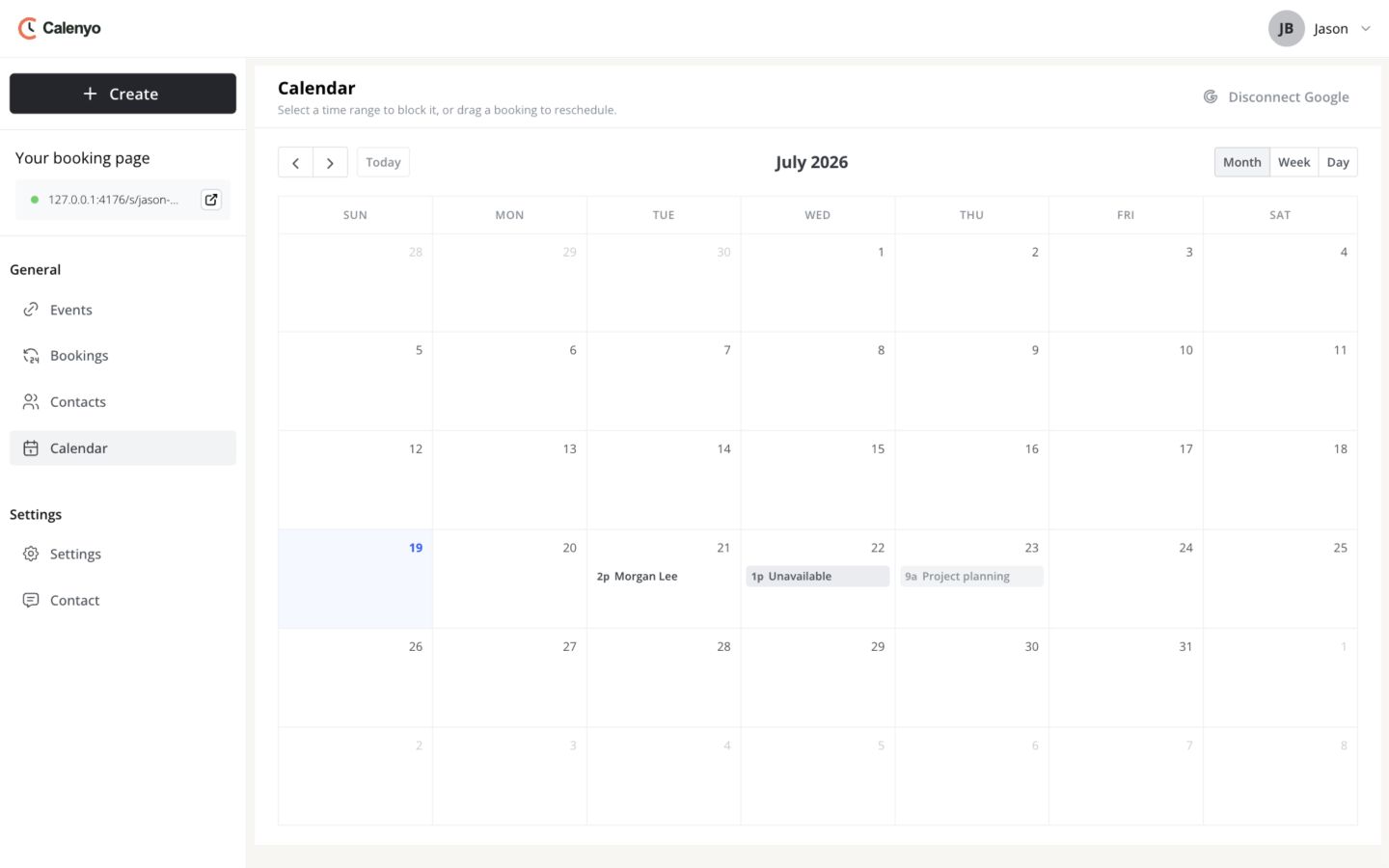 Actual Calenyo screen · Sample account
You’re done when
Busy time and bookable time no longer compete.
- Google events appear only if Jason chose to connect them.
- The focus block covers the intended date and time.
- The moved booking shows once at its new time.
No credit card required